Ovivio

Ovivio Pay

Never miss a payment from a parent again with Ovivio Payments

Save hours of manual invoicing and managing payments thanks to Ovivio.

Mobile payments

Easy for parents, easy for you

Powered by Stripe, Ovivio Pay allows parents to pay invoices in the same place they get updates about their children on the Ovivio Parent App.


It just makes sense!

Parents can check their fees and pay with a few clicks of a button. We can track all payments made and BE Paid allows us to forecast revenue, all for a small fee, saving money and time on debt collecting.
Tanya Parker

Nursery Manager, Buddle Nurseries Ltd

Invoices and payments streamlined all in one place - for you and for parents

Simple steps

As easy as 1, 2, 3

3 steps to mobile payments

Step 1

Bank

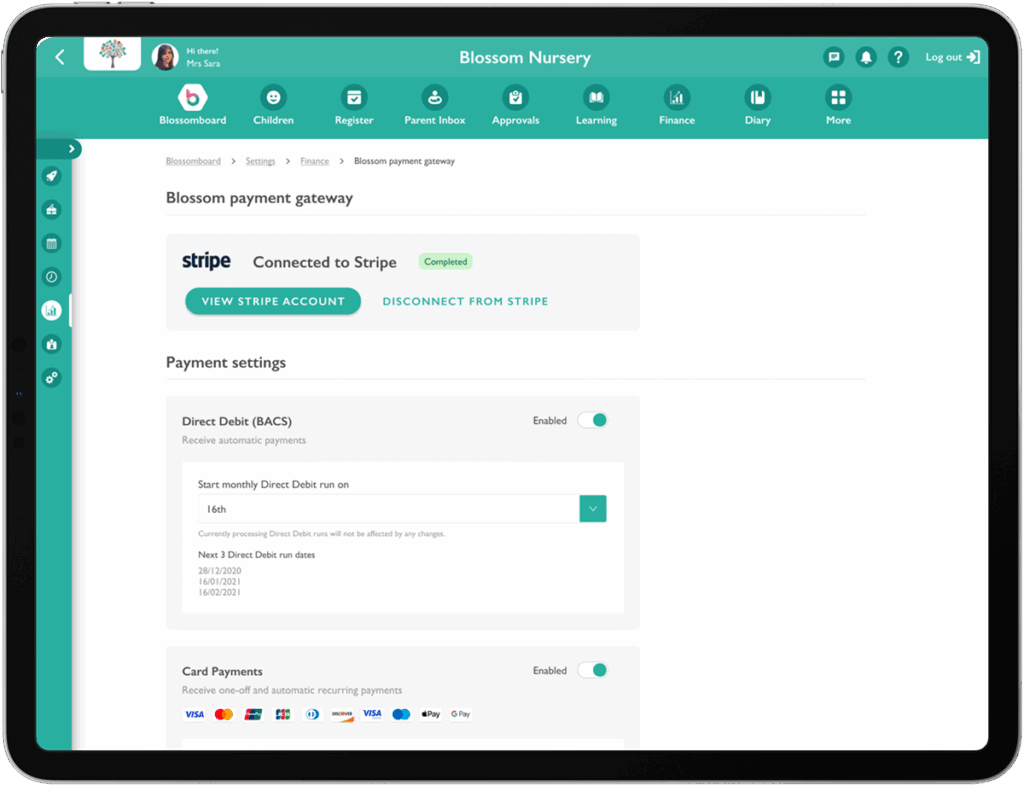
Simply enter in your account information and select payment types.

  • Connect with Stripe
  • Integrate with Ovivio
  • Automate billing
Step 2

Invoice

Ovivio generates invoices for you which are sent to the Parent App

  • Invoices in Parent App
  • Generate in bulk
  • Simple account overview
Step 3

Payment

Parents can pay using Direct Debit or via a one time card payment.
  • Pay by Card, Google Pay or Apple Pay
  • Manage cards in wallet
  • Set up Direct Debits

Reports

Mobile Payments Reporting

It wouldn’t be a data system without the ability to report on it – see all Ovivio Pay information in one easy gateway.

  • Easily track all payments
  • Customise BACS run date
  • See recurring fee payments, statuses and payouts

See it for yourself

Get paid faster with Ovivio Payments

Explore Ovivio Pay

Frequently Asked Questions

Everything you need to know about Mobile Payments

Who can view payouts and the payment gateway?

Only Ovivio users who are managers and nursery admins can see the financial information. Role permissions are easy to set up during initial onboarding or later.

Who should connect to Stripe?

We recommend that the nursery owner sets up the Stripe account, as it requires business financial information to set up. If you've got a Finance Manager or similar, they'd be suitable too!

Can I switch mobile payments off?

To disconnect from Stripe, you will need to deactivate the payment methods to ensure no new payments are added (More > Settings > Finance > Ovivio Payment Gateway > toggle off all payment methods). You must then wait for the ongoing payments to be processed and paid out. You will then be able to proceed with disconnecting your account, and charges will stop the following month.

Can I still get Ovivio Pay mobile payments if I signed up without it?

Yes, you can upgrade at any time and have Ovivio Pay added to your regular monthly payments for the remainder of your contract. You can even take it off again should you decide you don't want it any more.

Which parents can see and use the feature?

Only accounts set as the primary bill payer and finance contacts can access Ovivio Pay.